How to remove distortion on a Fisheye image

IMG_1284

I recently bought the Canon 15mm f2.8 Fisheye for my new 5D Mark II. It’s extremely wide angle and gives the characteristic fisheye distortion.

Here’s a gallery of images shot with that lens:
http://www.flickr.com/apps/slideshow/show.swf?v=63961

In some images you want the fisheye distortion, but in other images you might want to remove it.

15mm Fisheye Original

And there are several applications that can help you with that. Regardless of what fisheye you’re using.

ptlens

The most common way to remove the distortion is to squeeze the image in the middle. Something like what PTlens will do for you. In addition you can adjust perspective, rotation and a couple of other settings.

But this leaves you with an image that has to be cropped and if there are people along the edges of the image they will look very distorted.

Another program called Fisheye Hemi aim to fix that problem. And will try to remove the fisheye distortion using advanced algorithms to keep as much as possible and do the adjustments but keeping people and other details in the image without distortion.

I’ve made a simple flash animation to show the different images. Click the buttons below the image to change from original, to the one corrected with fisheye hemi to the one corrected with PTlens.

[kml_flashembed movie=”http://eirikso2.com/flashfiles/FisheyeTest.swf” height=”400″ width=”500″ /]

There are a lot of programs that is made to help you adjust lens distortions. I’ve also tried DxO, but simply found it too difficult to use. For people using Windows I’ve heard positive remarks of RectFish.

Please leave a comment if you have a favourite that I haven’t mentioned.

How to remove distortion on a Fisheye image

Aperture, shutter speed and ISO – Explained visually

IMG_0008

First of all: my entry into visualization using Flash in my last article was less than perfect. Mainly because I didn’t shoot every image in my sequence with the same aperture. Meaning that the background changed because the depth of field change.

So, I’ve made a new ISO-test of the 5D Mk II. Slightly better. At least the aperture stayed at 5.6 at all ISO values. The flash file is big, and I’ve not made any kind of download indicator. So when you click the link you need some patience while the page load.

Link to: Flash animation showing ISO-change

Aperture

But what about that aperture stuff? Did you say depth of field? Yes. When you change that thing called aperture on your camera things happen to your image. To put it short: a low value, like 1.4 gives more blur in your image. A high value, like 22 gives less blur. The detail that you focus on will stay sharp, but the amount of detail around that point change.

IMG_0009

Huh? Exactly. This is easier to show with an image. Or, actually several images. In an animation like the ISO-experiment. Where you can click the row of f-numbers at the bottom and see the image change. And it’s the same as with the ISO-animation. When you click the link you have to wait a while for the page to load.

Link to: Flash animation showing aperture change

Shutter Speed

IMG_0043

But hey! I can also adjust something called “shutter speed”. Yes, in addition to ISO and aperture the shutter speed adjust the amount of light you will let in at the CMOS- or CCD-chip. And the effect on the image? A long shutter speed gives motion blur. And if you are shooting without a tripod or something to support your camera a long shutter speed mostly means a completely blurred image.

To show the difference that the shutter speed makes I did the test again. With a train moving in the image. So now you can see the effect of both the shutter speed and the aperture. And you know what? When you click the link you need patience. Let the page load…

Link to: Flash animation showing aperture and shutter speed change

But your flash animations are crap

Indeed. I haven’t coded flash since 1999 and used Apple KeyNote to make these. So, if you want to make them better I have provided you with all the original images. Full resolution:
ISO-test Originals
Aperture Test Originals
Aperture and shutter speed test Originals

These are zipped archives of the images. And please let me know in the comments if you use these images. They’re licensed under a creative commons license.

Aperture, shutter speed and ISO – Explained visually

Quick ISO test of the Canon 5D Mk II

1600vs1600

People keeps asking about test images to show the low light performance of my new Canon 5D Mark II. So far I find it pretty amazing. The image above is a comparison of my old 400D at iso 1600 and the new 5D at iso 1600. Both images shot in RAW and converted with Canon DPP.

Because the 5D looks so good at iso 1600 I also did the same with the 5D at iso 6400.

1600vs6400

In addition to this I have put together a flash animation that shows you the same image at different ISO values. You can click the image to browse through the different values, or choose directly with the buttons.

[kml_flashembed movie=”https://eirikso.com/flash/ISOtest2-500.swf” height=”375″ width=”500″ /]

The example embedded here is small and doesn’t really show the images very well. If you have some patience and wait for the loading, I have also published a bigger version. And no, I’ve not made any fancy “loading-animation”. You just have to wait for the page to finish. And I know: Not very smart to let the camera change the aperture. Apart from the fact that it gives a nice demonstration of how the depth of field change…

Quick ISO test of the Canon 5D Mk II

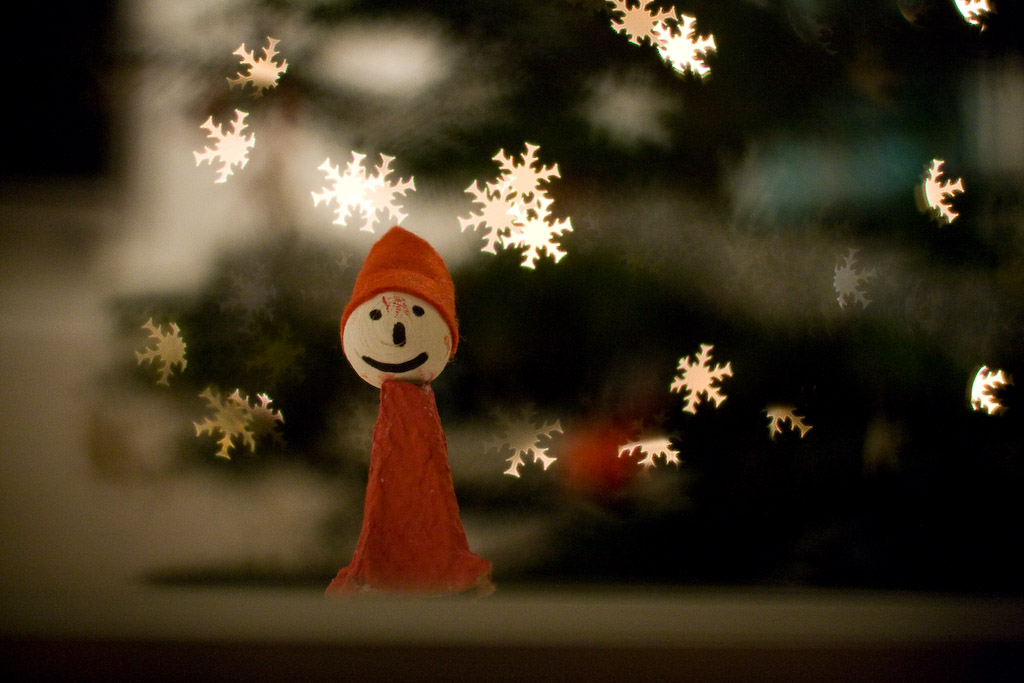
How to make that cardboard ‘hood’ for the DIY bokeh effect

Earlier this year I posted an article about how to make your own “bokeh” in your images. People have asked me for details about the cardboard “hood” I’ve been using.

So I decided to simply tear it apart and put it together in front of my video camera. Three minutes and fifty seconds later. And there you are. A nice tutorial on how this was put together.

http://vimeo.com/moogaloop.swf?clip_id=2165224&server=vimeo.com&show_title=1&show_byline=1&show_portrait=0&color=01AAEA&fullscreen=1
DIY bokeh from Eirik Solheim on Vimeo.

Direct link to the video file.

How to make that cardboard ‘hood’ for the DIY bokeh effect

My current image workflow

I posted my current backup strategy a while ago. And after a quick chat with Rodrigo on Twitter I decided to post my image workflow as well.

The basic flow is simple:

1. Out there
Snap images in RAW using my trusted Canon ESO 400D. I’m still very impressed with this camera. It has survived more than I could expect. Now snapping away at its image number 26 654.

It has survived drops from 1,5 meter. Heat and sand in Marrakesh and freezing snow in the mountains of Norway. I’m not changing before Canon cranks out that 21 mpix, 8 fps, weather sealed, HD-video shooting full frame 5D mark II. Yeah. I know. Rumors.

Anyway, I am using two 4 GB SanDisk Ultra II CF cards while out shooting. Then:

2. At home
Transfer the images to my 24″ iMac (a fast, beautiful, silent and in general amazing machine). I’m using the import function in Lightroom and organize the images in folders according to the date: “Main Archive”/Year/Month/Day/image files

The images are not stored on the iMac. They go to a shared drive that’s connected to the main server at home. The main server is a MacBook Pro that had an accident and ended up with a destroyed screen. It’s now permanently connected to the TV in our living room. Serving as a media hub, PVR and file storage for the family. It’s placed in a well ventilated cabinet together with a bunch of disks.

And that’s where my image files go. On to two of the disks. Set up in a mirrored RAID for redundancy.

3. The boring stuff
Tag my images as much as I have time for. Usually that boils down to a few tags describing the session, happening, place and whatever suits all images. I’m not good enough at individual tagging of my images. Too much of my archive relies on the fact that I remember when the image I am looking for was taken. Lately I’ve also started to do automatic geotagging of my images.


(This image: the ultimate cliche. Shot at Solastranden at the western coast of Norway)

4. The fun stuff
Process and edit my images. Lightroom 2 is really powerful for this. With the adjustment brush I can do wonders with an image very fast. And everything is non destructive, leaving the original RAW file untouched. The RAW files contain more information than a JPG and I’m still amazed what I can get out of even a bad shot with wrong white balance and wrong exposure.

I used Aperture for this in the beginning. But Aperture ended up useless on my 60 000+ image archive. I’ve checked, and the latest version of Aperture is way better at this. But when switching I also ended up liking the tagging work flow, editing, RAW conversion and general handling in Lightroom better.


(This image: the beautiful Steinsdalsfossen in Hardanger, Norway)

The kitschy stuff goes into Photomatix and the tricky stuff goes into Photoshop.

5. Publishing
I’m using my images in my presentations, on this blog, over at NRKbeta, on our family site, on print and even for sale. I have a lot of images on Smugmug and Flickr, but the ones I’ve sold have been directly because someone found them on my blog or through my experiment with Shutterpoint.

In general I’m pretty relaxed when it comes to people using my images. As long as it’s not stupid shops using them in commercials without asking.

The alternate workflow
When travelling I bring my MacBook Pro. I’m running Lightroom on that one as well. So, when I’m on the road my images go from the camera, into the MacBook and on to an external disk for backup as well. When back home I transfer the images from the MacBook. Keeping all the editing and metadata from Lightroom on the laptop.

Feel free to fire away questions in the comments.

My current image workflow

Automatic geotagging of your images

Geotagged image of a white cat

You’re geotagged, baby!

Six years ago I did an experiment after returning from a trip in France. I matched the time stamps of my digital images with the time stamps in the track from my GPS to be able to automatically place all my images on a map. At that point the trick included a lot of manual work, coding and hacking.

Fast forward to 2008 and there are a lot of software to help you do this. And I really like all solutions that can help me with automatic tagging of my images. Like most people I’m not too clever at manually tagging my images…

Time to find the best solution. My iPhone has a built in GPS and the best solution would be to leave a GPS tracker running on it at all times. Unfortunately that’s not possible due to the stupid fact that the iPhone doesn’t support proper multitasking. And it would probably drain the battery on my phone too fast.

So I’ll opt for yet another gadget. A small tracker that I can leave in my camera bag. It needs to be sensitive, fast and have a very good battery life. And it must support Mac OSX.

After some hours of research I’ve decided on the Qstarz BT-Q1000P. According to the reviews it is very accurate and sensitive. Due to the relatively new MTK 51 channel chipset. And probably due to a good antenna. The battery lasts for 32 hours continous use (according to a test the real life performance was actually measured to 36 hours). And it can be charged through a standard USB cable.

The Mac support isn’t out of the box but done with some third party software. Namely the MacTravelRecorder or the free bt747. I’ll get back here with my experience when I have received the device.

Geotagged image in google maps

Of course, I can’t just wait for that gadget to arrive, so I had to do some tests with my iPhone. I installed iTrail and went for a quick walk with my Canon 400D.

My camera doesn’t know anything about geotagging, but the beauty is that I’m now walking around with a device that records track points for where I am at any time (iPhone with GPS) and another device that snaps images and records the time when it was shot (the Canon 400D). And that’s the only thing you need to be able to place the images pretty accurately on a map.

Well back home I exported the track and used Gpicsync to do the work. The version of iTrail that I used doesn’t record time stamps for the track points, so the utterly intelligent Henrik Lied had to help me do some scripting to generate time stamps based on the start time and intervals. The author of iTrail promises time stamps in the next release. You point the software to the GPS track file and the folder with the images and it does the rest. It marks the photos with the nearest track point and adds tags for the actual location names. Meaning that you’ll not only get the coordinates, but actual tags with location names: “oslo”, “norway”, “marienlyst” etc. And the software will also make nice files for Google Earth and Google Maps. Here’s my experiment embedded:

And a direct link to Google Maps.

Don’t mind the boring images. This was not a test of my photography skills…

The nice thing about all this is that my image archive in Lightroom will be way better if I bring a GPS while shooting. Because of the fact that the software also adds names in the tags I can quickly find all images taken on a specific location.

Now, if I only had been smart enough to always bring a GPS the day I started shooting digitally. 🙂

Some resources on geotagging:
trick77.com » Review: Geotagging software comparison for the Mac
Mac geotagging software showdown
Qstarz BT-Q1000P Platinum Travel Recorder – Review
Qstarz BT-Q1000 GPS logger review
ImageIngester – Software for professional digital photographers
VCP Serial Driver (you need it for Mac compatibility on a lot of the dataloggers)

And the two other data loggers on my shortlist before I went for the QStarz:
AMOD AGL3080 – Mounts like a USB drive to let you download tracks, meaning out of the box mac support. But using the older SIRFstar III chipset and can’t be charged through standard USB.

GISTEQ PhotoTrackr – Native mac software is a plus. Motion sensor for power management is a plus. But the dpl700 can’t be charged through USB and seems less sensitive than the QStarz (after reading several tests). The rechargeable Gisteq CD111 is supposed to have been upgraded to the new chipset, but according to ThinkGeek and Expansys they’re both still selling the old version.

So I’m waiting for my BT-Q1000P…

Update:
I have recieved my Qstarz device and it worked very well on my Mac using this program:
Mac TravelRecorder

It will set you back $49,- but it works very well. First of all, I could download tracks and update all settings through bluetooth. No drivers needed. In addition to that I installed the USB driver and it also works through USB.

The same thing is supposed to work with another software – BT747, but that software didn’t work right out of the box. BT747 is completely free, but I decided to go with the extra $49,- because I didn’t have the time to make BT747 work (please note that I have something close to zero patience if I have an alternative that works. And with this device I had a $49,- alternative).

The tests I’ve done with the Qstarz device show what I’ve been reading elsewhere. It’s very sensitive. Gives me connection where other devices won’t. I haven’t done any extensive tests during travel yet, but so far I’m very pleased with the device.

I’ve used the Qstarz on my MacBook Pro through bluetooth and USB. And on my 24″ iMac through bluetooth. Both running the latest version of Mac OSX 10.5.

Automatic geotagging of your images

Vote for my image on this weeks Wired photo contest

This week they’re running a contest with images of food. So I submitted this one:


“One mistake and this turns into scrambled eggs”

If you like it you can click yourself over to Wired and vote it up. Right now (as of June 30. @15:15 CET) it is at top. w00t! 🙂

And by the way, you can only submit one vote.

Vote for my image on this weeks Wired photo contest

How to build an amazing lantern of ice

Yes – completely off topic regarding the internet, media centers, marketing and new media. You know, the stuff I usually write about here on eirikso.com. But it has been easter holiday, cold and I’ve had several days off.

First, ensure you’ll have a couple of days with sub zero degrees. Preferably something below -5 degrees Celsius (23 F). Then fill a big bucket with water. Find a smaller bucket and place it in the water in the big one. Find something to put in the small bucket to make it submerge in the water in the big bucket. Don’t use water in the small bucket. Use small stones or something else. I found a part of wood.

The small bucket will float around in the big one, so you might want to tie it up to make it sit still in the middle of the big bucket. You need about 5 cm (2 inches) of water around and under the small bucket.

Now leave the bucket outside for a couple of hours. I needed about two days in -5 to -10 degrees Celsius (23 – 14 F).

When it is completely frozen remove the weight in the inner bucket and fill it with hot water. This will melt some of the ice to make it easy for you to remove the inner bucket.

Depending on the temperature you might need to pour some hot water outside on the big bucket as well. To be able to remove it.

When removed, make some holes along the end. When you place it on top of a candle you need some air to flow into it. When finished, light a small candle and place the block of ice on top of it.

Now wait for the evening to arrive and have fun watching these amazing lanterns.

But the heat from the candle will melt the top of the lantern! Yes, but it will keep looking cool. 🙂

While in holiday mode. More off topic:
The pepper matters
Living in Norway (cold… and hot…)
The video of the seasons in Norway

How to build an amazing lantern of ice